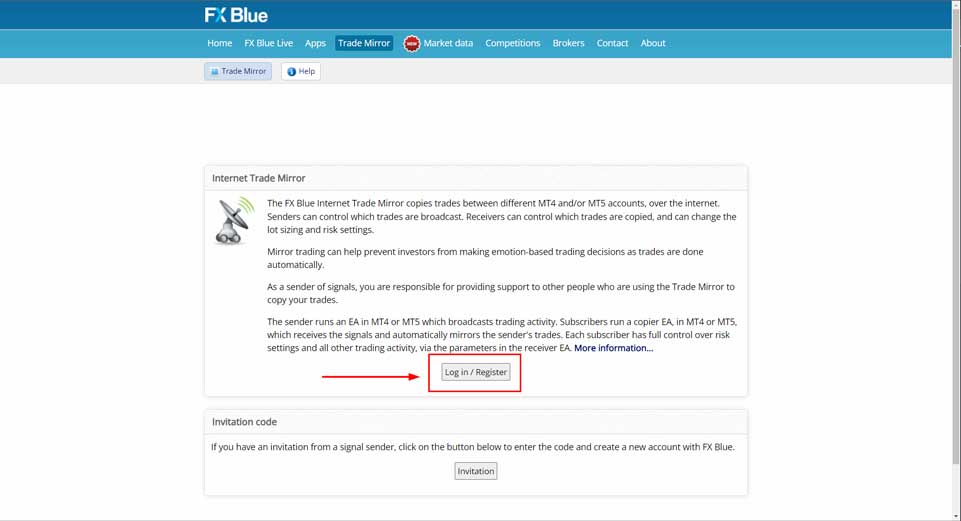
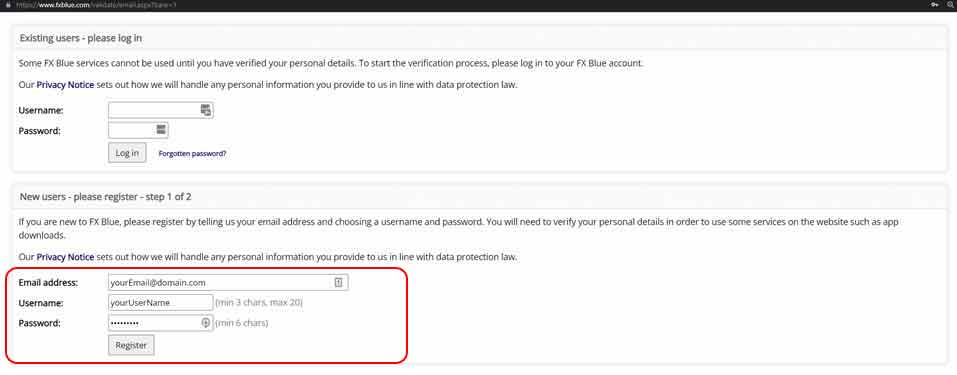
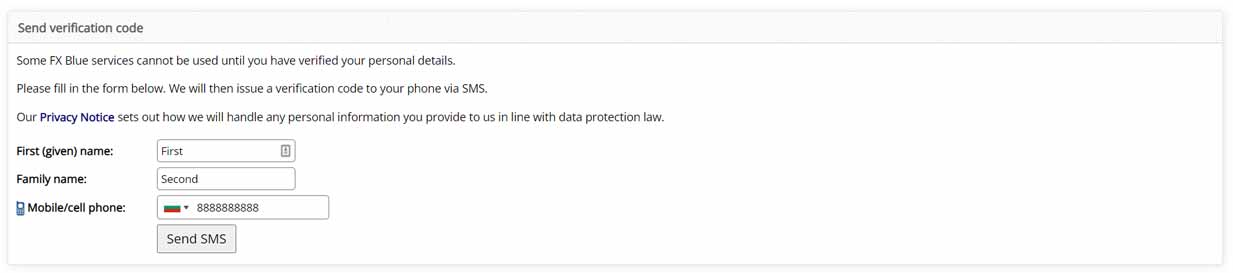
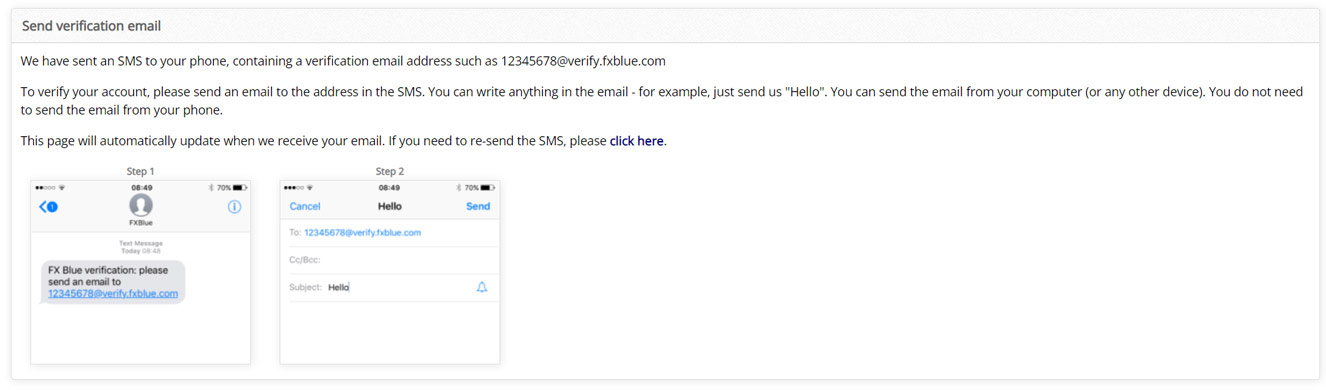
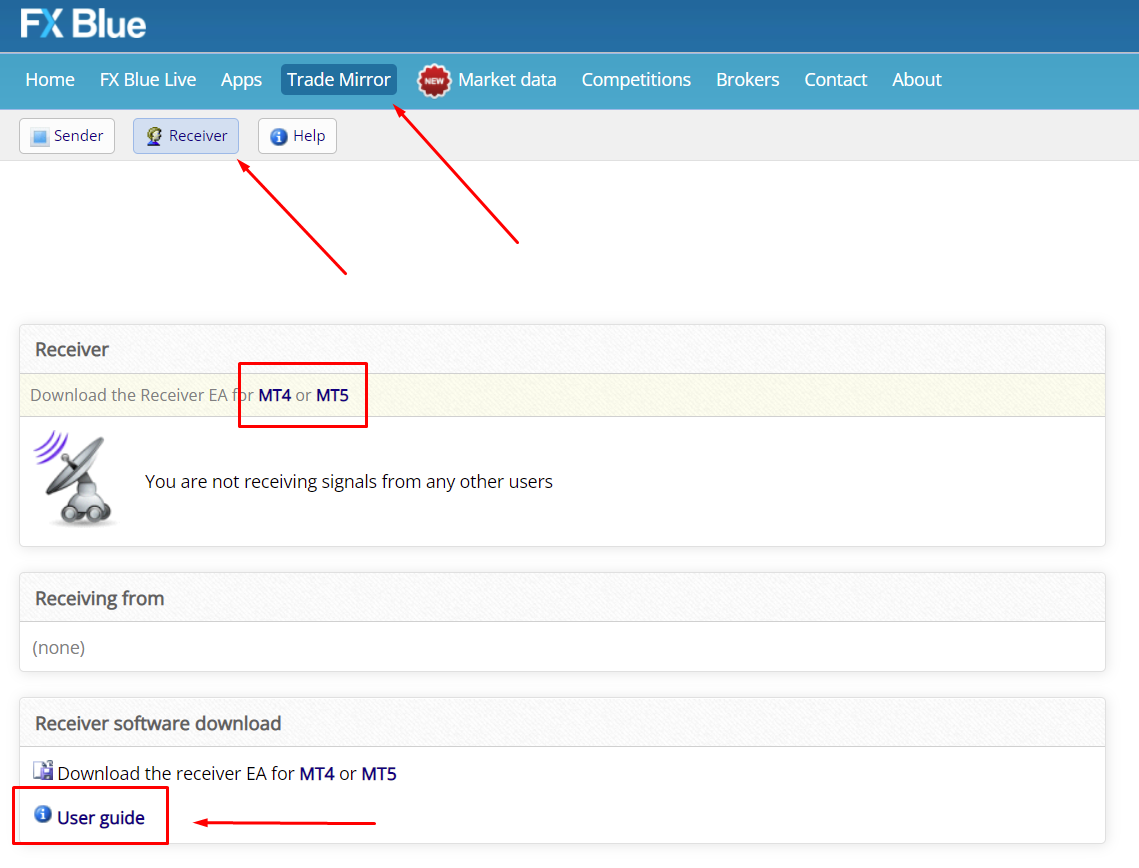
If you are already logged in, navigate to the “RECEIVER” tab/button.
Click MT4 or MT5, depending on which platform you use.
Don’t forger to go over the User Guide and familiarize yourself with the copy trading software.
STEP 2 – INTALL THE RECEIVER
Close your MT4/MT5 platform
Open the FxBlueTradeMirrorReceiver.zip file.
Open the only file that is inside and restart “FX Blue Trade Mirror Receiver for MT4/5 Setup.exe”
After the installation is completed, you may run the mt4/mt5 platform.
STEP 3 – CONNECT THE RECEIVER TO THE SENDER
Open the FxBlueTradeMirrorReceiver.zip file.
Open the only file that is inside and restart “FX Blue Trade Mirror Receiver for MT4/5 Setup.exe”
After the installation is completed, you may run the mt4/mt5 platform.
STEP 4 – SET UP THE RECEIVER
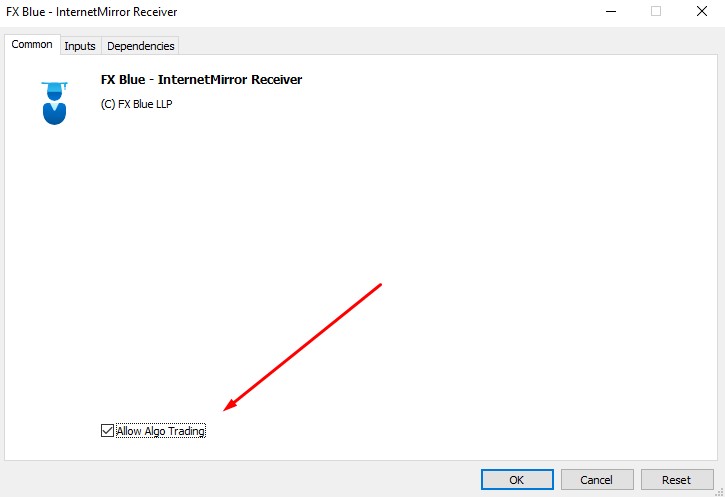
Load the FX Blue Receiver to any chart.
Make sure Algo Trading is allowed in the Common Tab.
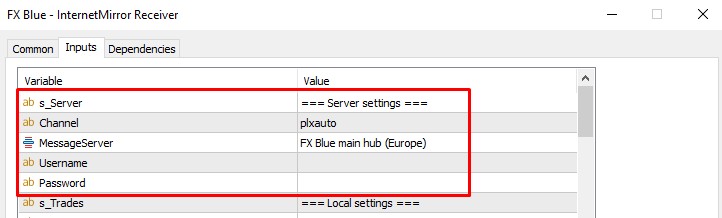
On the very top you have to fill in these 4 settings
Channel: plxauto
MessageServer: Europe
Username: your FX Blue user name
Password: your FX Blue password
The final required is for the SP500 symbol. The FX Blue trade copier automatically recognizes Forex Pairs, however for every other instrument it might be needed to further clarify.
Here is the example and explanation from the User Guide: ” Non-fx markets require entries in theCustomSymbolMappingslist. This tells the copier how to translate from symbol names on the sender account to symbol names on the receiver account. For example, if the sender’s name for the S&P 500 index is SPX500 and the receiver’s version is .US500, then the entry to add to CustomSymbolMappings is: SPX500=.US500 “
What you have to do now is check the exact spelling of SP500 on your broker and fill in the CustomSymbolMappings. The example below could be read as follows:
– Sender’s SP500 = [SP500] (this is admiral markets)
– Receiver’s SP500 = SPX500 (this is Osprey MT5).
Basically you have to replace the second one, after the equal sign with whatever SP500 is abbreviated in your broker.
[SP500] = XXXXX
That’s all!
IF YOU HAVE ANY QUESTIONS OR YOU ARE NOT SURE HOW TO SET IT UP YOURSELF, DON’T HESISTATE TO CONTACT US.
Email Support: support@traders-terminal.com Contact me directly in telegram: https://t.me/yordan_k
STILL TRADING ALONE?
Trading doesn’t have to be a lonely job. Get your FREE account and join the Traders Terminal community.